Adobe Creative Cloud and Adobe Workfront: When two worlds meet

Author: Aline Neumann
Why creative software and project management don’t have to be separate, and how combining the two worlds simplifies production workflows.
Adobe Creative Cloud and Workfront are technically linked via three integration methods: a native plug-in brings Workfront directly into the workspace of Photoshop, InDesign, Illustrator, Premiere Pro and After Effects. Workfront Fusion automates production workflows via the Photoshop, InDesign and Illustrator APIs. And Frame.io provides a specialised review interface for videos. This article explains how all three work, what they can do and where they fall short.
The problem: one file, several systems
Creative professionals know that moment: the file is finished. Exported. And then the real problem begins. Filing, naming, sharing. Someone needs to be told that it exists.
This rarely happens in a structured way. The file is sent by email to the project manager, via a chat link or to a shared drive that nobody maintains systematically. The designer switches to another tool, manually enters what they’ve delivered, and hopes that the feedback doesn’t end up in a different channel.
This problem stems from a system architecture in which creative work and workflow management are two separate areas, linked only by manual processes. Adobe has addressed this very issue by building a technical bridge between Creative Cloud and Workfront.
This bridge comes in three different forms. Which one you choose depends on one key question: Do you want to involve creative staff more effectively in the process? Automate production workflows? Or give the team a professional video review interface? Or a combination of these?
What Creative Cloud does in a supply chain
A ‘content supply chain’ is the entire journey that content takes through an organisation: from planning, requirements, production, reviews and approval right through to delivery. The Creative Cloud applications (Photoshop, InDesign, Illustrator, Premiere Pro, After Effects) are the stages at which a briefing is turned into an asset.
The problem is that, in most organisations, these processes are a black box. It is difficult for the rest of the organisation to see when something will be finished, what is currently happening, or which version is available. The project manager doesn’t know whether the file will arrive in two hours or two days. The next step in the process cannot begin because it is unclear whether the asset has been approved. This is exactly where Workfront comes in: it manages the entire process, assigns tasks, tracks progress and monitors approvals.1For Workfront to fulfil this role, it needs to know what is happening in the creative tools. And creatives need to be able to work efficiently without constantly switching between tools. Both of these requirements can be met through native integrations, in different ways.
Option 1: The Workfront plug-in for Creative Cloud
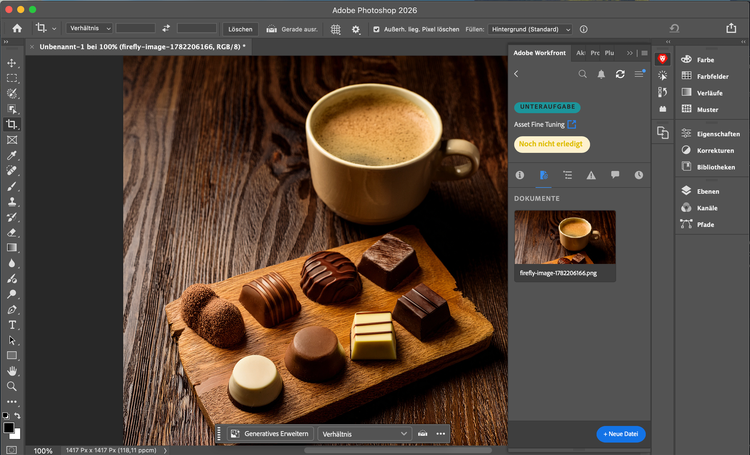
Adobe offers a cross-application plug-in called ‘Adobe Workfront for design and video’, which can be installed via the Adobe Exchange Marketplace. 2It opens a Workfront panel directly within the relevant application and integrates Creative Cloud work with project and task management, without having to switch tools.
The plug-in supports InDesign, Illustrator, Premiere Pro and After Effects.3 There are separate plug-ins for Photoshop and XD, which can also be installed individually via Adobe Exchange.4 5 The functionality is the same across all of them.
In practice, this works as follows: Creative staff can view their Workfront tasks directly within their application. They can upload files, initiate approval workflows, read and reply to comments, and log working hours against the task.6Reviews are carried out via Workfront’s Proofing Viewer, which offers a commenting function, version control and an approval workflow.7
The result: no more manual handover processes. Exporting files, saving them, updating statuses, and requesting approval via email – all of that is no longer necessary. It doesn’t matter whether an asset is created in Photoshop, a layout in InDesign or an edit in Premiere Pro. The handover point to Workfront is the same everywhere. A consistent interface, a consistent approval workflow.
Option 2: Fusion and the Creative Cloud APIs
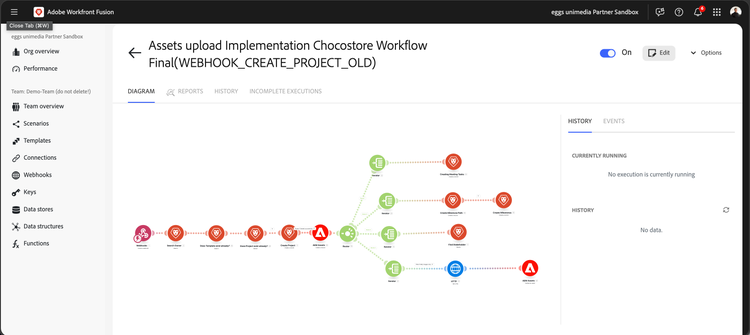
Whilst the plugin described above helps integrate creatives more effectively into existing processes, Fusion completely replaces certain production steps. It automates production tasks that are repetitive, rule-based and high-volume. These are tasks that do not need to be carried out manually.
Adobe provides dedicated APIs for Photoshop, InDesign and Illustrator via Firefly Services.8 9 10 In Workfront Fusion, there are separate modules for each of these APIs, which make API calls available as workflow steps. 11 12 A typical Fusion scenario creates the new assets and automatically saves them to AEM Assets. At the same time, a quality control task can be created in Workfront.11 17
Photoshop: Image Variations from Templates
A concrete example: A campaign is running in eight languages. The layout is the same; only the product image and text change. Without automation, someone would have to open the master PSD eight times, swap the elements, export, rename and save. With Fusion, the task is configured once and then runs automatically. Whether there are eight variations or eight hundred makes no difference.
The technical core is the Smart Object in Photoshop. It is an embedded object, comparable to a frame for an image, and can be replaced without altering the rest of the composition. Position, size, masks and effects remain the same. Only the content changes. When preparing a PSD template for automation, you create variable images as Smart Objects and variable text as named text layers. The Photoshop API can then replace precisely these elements.8
InDesign: Data Merge for Layouts
The same principle applies in InDesign. An InDesign template containing variable fields is automatically populated with data – such as product names, prices and images – from a CSV file or an external system. The result is hundreds of variations of a multi-page layout, without anyone having to open InDesign.13
The InDesign API supports data merge, rendition (PDF/PNG export) and script execution. Typical use cases include product catalogues, price lists or localised brochures, where only the content changes, not the design.9
Illustrator: Vector Graphic Variations
Illustrator works with vector graphics, such as logos, icons and illustrations, which can be scaled without any loss of quality. The Illustrator API makes it possible to swap colours in such graphics, render variants, convert image content to vectors or run custom scripts.10 For example, if you need a brand logo in 50 colour variants for different regions, you can automate this using the Recolor function via the API with Fusion.
Option 3: Frame.io for video review
For video and motion projects, there is a specialised review channel in addition to the plugin. In 2025, Adobe introduced ‘Unified Review and Approval’, a native integration of Workfront and Frame.io that creates a shared review layer for all content types.14
An editor in Premiere Pro renders a draft. Via Frame.io, the video goes straight into a Workfront approval workflow. Reviewers provide frame-accurate comments, pinned to specific frames rather than generic timestamps. Approvers make binding decisions (Approve / Needs Work). The asset is stored in a single location and is available across all tools without the need for manual uploads.14
Frame.io supports over 40 file formats with native playback of professional codecs (ProRes, H.265, DNxHD), and offers visual markup tools for annotations directly on the asset. For teams that review not only images but also video, audio and large PDFs, it replaces the previous ‘download file → open locally → provide feedback via email’ cycle.15
The big picture
Taken together, this forms a clear concept of how Creative Cloud fits into a complete content supply chain.
Workfront manages what is to be produced and when, allocates tasks, tracks status and oversees approvals. The plugin links creative work in Photoshop, InDesign, Illustrator, Premiere Pro and After Effects directly to this Workfront context. This eliminates the need for manual handover, regardless of which tool the asset is created in. For repeatable, high-volume production processes, Workfront Fusion comes into play. It acts as an automation layer that connects Workfront, AEM Assets, the Photoshop/InDesign/Illustrator APIs and external systems, enabling end-to-end workflows without human intervention. And for professional review (particularly of video), Frame.io bridges the gap between creation and approval.
Where things get complicated
Integration solves real problems. However, it also brings new challenges.
Limitations of the APIs
The Creative Cloud APIs are cloud-based tools for recurring production tasks, but they are not a replacement for the desktop applications. They work well for repeatable processes involving large volumes of files, for example:
- Background removal from hundreds of product photos (Photoshop API)
- Automatic generation of the same layout template in different languages (InDesign API)
- Standardised colour variants or renditions of vector graphics (Illustrator API)
- Extracting file metadata for further processing in other systems
However, they reach their limits when it comes to complex creative work. Manual retouching, fine-tuning of typography, editorial layout or tasks that require sound judgement cannot be automated.
What is required for integration
The plugin only works if creative staff are actually using Workfront tasks. Simply installing it is not enough. This may sound obvious, but in practice it is often a change management issue. If Workfront is not the standard system used by the team, the plugin remains a ‘nice-to-have’ with no real impact.
The Fusion integration requires technical expertise. Someone must set up, maintain and monitor the workflows. The APIs require a Firefly Services licence in addition to Workfront. The costs scale with the number of API calls. This applies equally to Photoshop, InDesign and Illustrator.16 The Frame.io integration requires a corresponding update to the Workfront contract.14Teams wishing to use all integration methods need a clear overview of their licensing landscape. Not every Creative Cloud licence automatically includes API access or Frame.io for Business.
The sensible first step is therefore to understand before automating. What assets are being created, and in what quantities? Where are the biggest bottlenecks in the process? Which tasks can actually be automated with sufficient reproducibility? Which review processes are holding up delivery?
Anyone who answers these questions will quickly see which integration really drives the supply chain forward: the plugin, Fusion, Frame.io or a combination of these. The decisive factor here is the overall process surrounding the tools, with clear roles, a functioning DAM and a Workfront setup that the team actually uses. This is exactly where we can help, with assessments, process analyses, or an initial workshop tailored to your supply chain needs.
Sources
- Adobe Experience League, „Workfront and Adobe Experience Manager Assets". experienceleague.adobe.com/en/docs/workfront/using/documents/wf-aem-integrations/wf-aem-integrations
- Adobe Exchange, „Adobe Workfront for design and video". Adobe Exchange
- Adobe Experience League, „Install and open Adobe Workfront for design and video". Install and open Adobe Workfront for design and video | Adobe Workfront
- Adobe Experience League, „Install and open Adobe Workfront for Photoshop". Install and open Adobe Workfront for Photoshop | Adobe Workfront
- Adobe Experience League, „Install Adobe Workfront for XD". Install and open Adobe Workfront for XD | Adobe Workfront
- Adobe Experience League, „Adobe Workfront plugin for Creative Cloud Apps". Adobe Workfront plugin for Creative Cloud Apps | Adobe Workfront
- Adobe Experience League, „Upload proofs from Photoshop". Upload proofs from Adobe Photoshop | Adobe Workfront
- Adobe Developer, „Getting started with Smart Objects and the Photoshop API". Getting started with Smart Objects
- Adobe Developer, „InDesign API Overview". Adobe InDesign API Overview
- Adobe Developer, „Firefly Services – Illustrator API". Overview - Firefly Services Illustrator API
- Adobe Experience League, „Adobe Photoshop modules in Workfront Fusion". Adobe Photoshop modules | Adobe Workfront
- Adobe Experience League, „Adobe InDesign modules in Workfront Fusion". Adobe InDesign modules | Adobe Workfront
- Adobe Developer, „Working with the Data Merge API (InDesign)". Working with the Data Merge API
- "Adobe Experience League Communities, „Now Available: Unified Review and Approval with Adobe Workfront and Frame. io". Now Available: Unified Review and Approval with Adobe Workfront and Frame.io | Community
- Adobe Business Blog, „Unify review and approval for content workflows". Unify review and approval for content workflows
- Adobe Firefly Services, „Firefly Services – Business". Firefly Creative Production | Production Workflow Builder
- Adobe Experience League, „Adobe Experience Manager Assets modules in Workfront Fusion". Adobe Experience Manager Assets modules | Adobe Workfront